OPC Classic™
The OIBus agent can receive the following HTTP calls. The agent runs a local HDA module through an inter-process communication. To run properly, COM/DCOM must be enabled.
HTTP API
Status
curl --location 'http://localhost:2224/api/opc/id/status'
Connection
curl --location --request PUT 'http://localhost:2224/api/opc/id/connect' \
--header 'Content-Type: application/json' \
--data '{
    "host": "localhost",
    "serverName": "Matrikon.OPC.Simulation"
}'
Read
curl --location --request PUT 'http://localhost:2224/api/opc/id/read' \
--header 'Content-Type: application/json' \
--data '{
    "host": "localhost",
    "serverName": "Matrikon.OPC.Simulation",
    "startTime": "2023-11-02T15:00:00.000Z",
    "endTime": "2023-11-02T16:00:00.000Z",
    "aggregate": "raw",
    "resampling": "none",
    "items": [
        {
            "name": "Random",
            "nodeId": "Random.Int1"
        },
        {
            "name": "Triangle Waves",
            "nodeId": "Triangle Waves.Int1"
        },
        {
            "name": "Saw-toothed Waves",
            "nodeId": "Saw-toothed Waves.Int1"
        }
    ]
}'
Disconnection
curl --location --request DELETE 'http://localhost:2224/api/opc/id/disconnect'
COM/DCOM setup
Background
COM
COM is the standard protocol for communication between objects located on the same computer but which are part of different programs. The server is the object providing services, such as making data available. The client is an application that uses the services provided by the server.
DCOM
DCOM represents an expansion of COM functionality to allow access to objects on remote computers. This protocol allows standardized data exchange between applications from industry, administrative offices and manufacturing.
OPC
The OPC client is an application that accesses process data, messages, and archives of an OPC server. An OPC server is a program that provides standard software interface to read or write data.
This page gives some hints on how to set up a communication with COM/DCOM to an OPCHDA server. However, in industrial context, it is often the responsibility of the IT team to correctly set the permissions, firewall and Windows configuration.
Windows settings (client)
Client machine settings
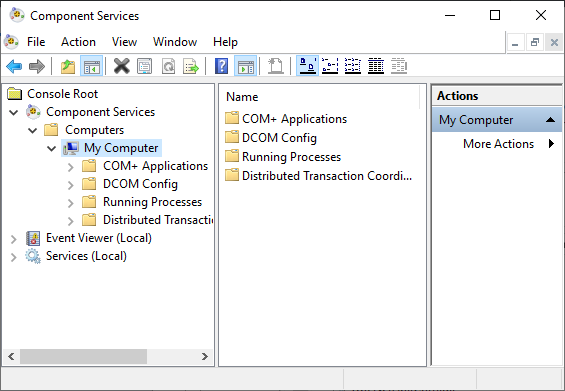
Follow these steps to enable COM/DCOM communications from the client. First, open the Component services, and access the Properties of the computer.
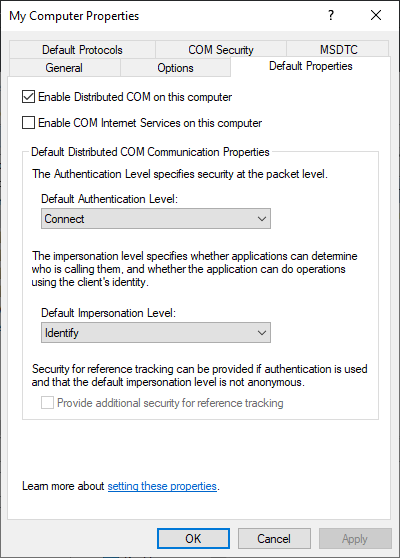
Be sure to enable Distributed COM on this computer (on the Default Properties tab).
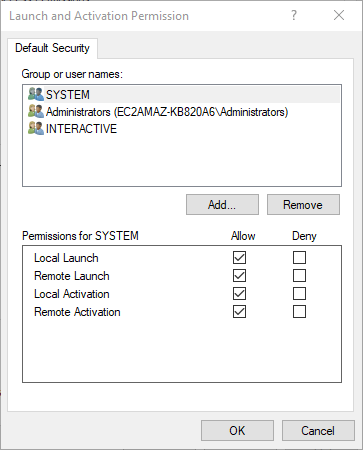
On the COM Security tab, edit default Launch and Activation Permissions.
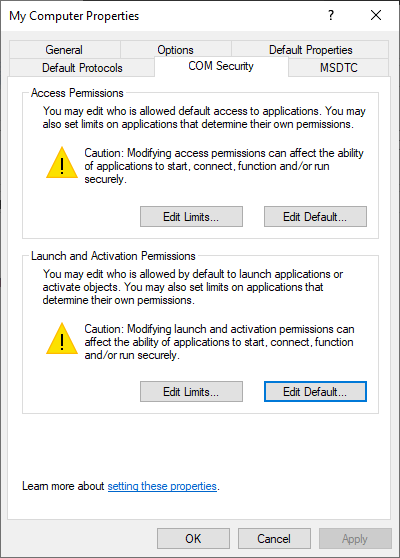
On the Launch and Activation Permissions window, allow the following permissions:
- Local Launch
- Remote Launch
- Local Activation
- Remote Activation
Test communication
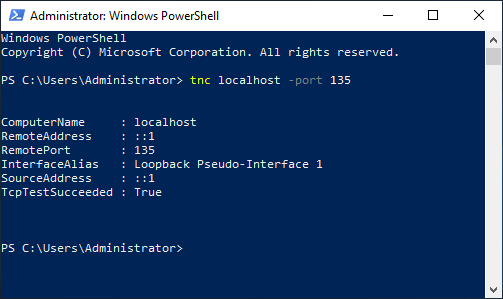
DCOM uses port 135 of the HDA server to exchange with the client. To test connectivity:
tnc localhost -port 135
Authentication
An OPCHDA client program will communicate with the DA/HDA server with the IP address or hostname of the server followed by the "progId" of the server. The user must be known on the HDA server.
The user must be a member of the Distributed COM Users group
If the program runs through a service (such as OIBus), configure the service to run as a specific user.
Firewall configuration
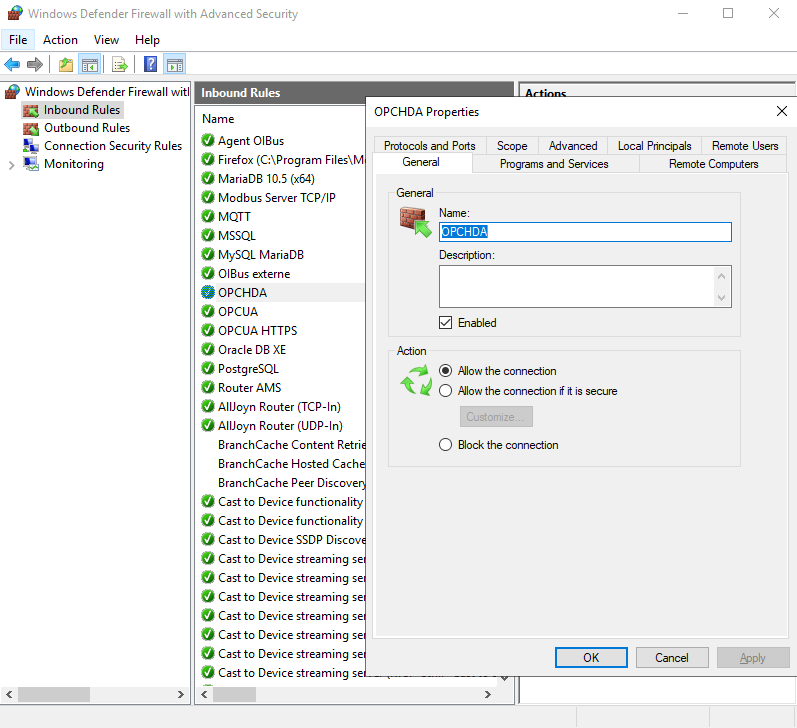
Configure the firewall by adding a rule on port 135.
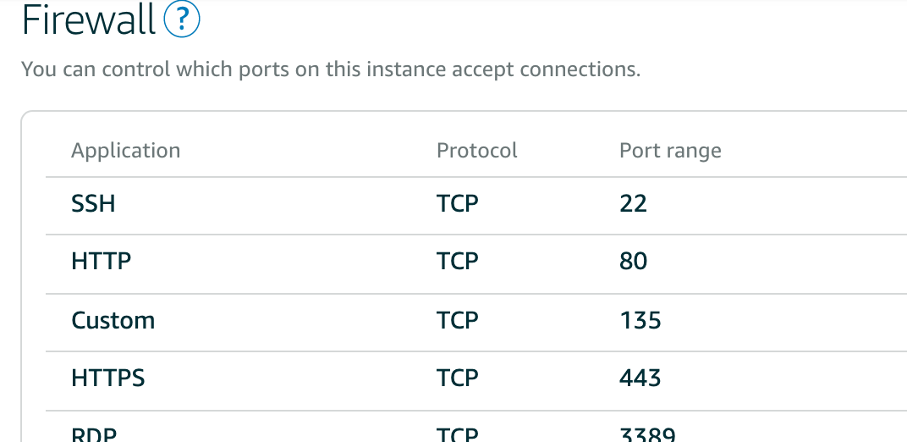
For cloud hosts like Lightsail, configure additional firewall rules:
OPCEnum tool
The OPCEnum tool allows OPCHDA clients to locate servers on remote nodes.
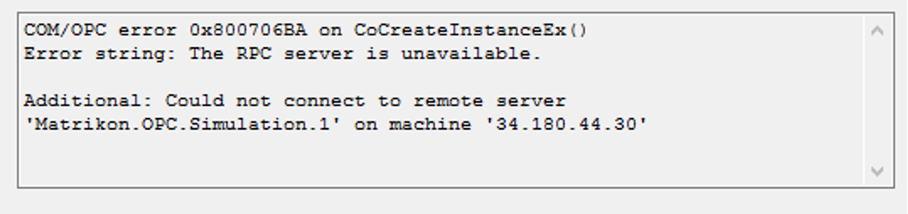
RPC unavailable
If the RPC server is unavailable, check your firewall and test communication again.
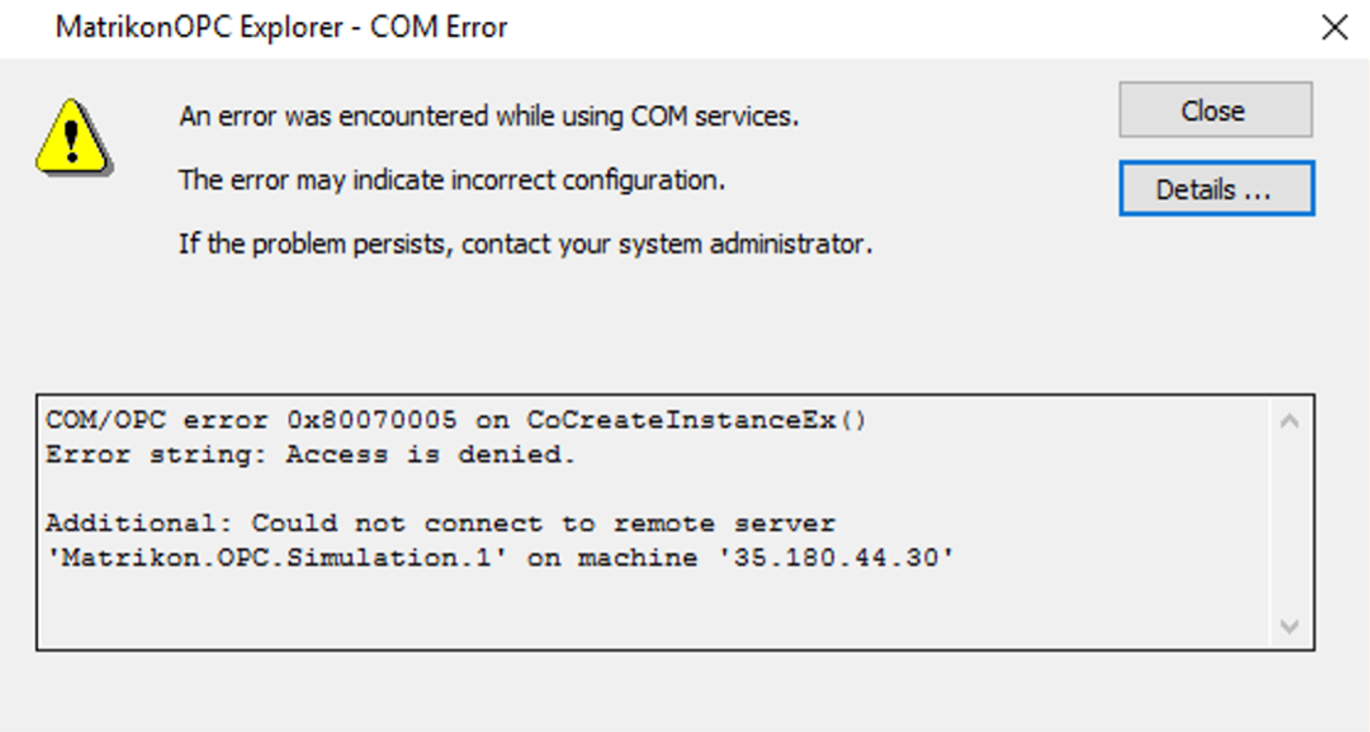
Access denied
Check user credentials and group membership if access is denied.
Server settings
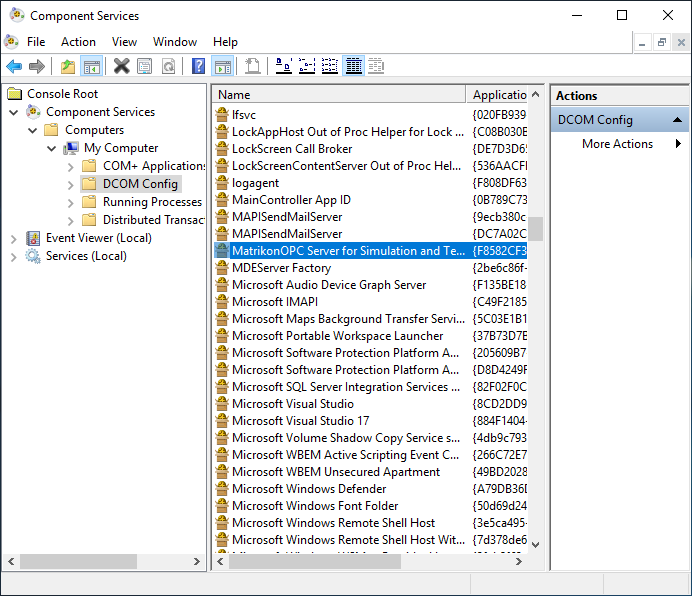
Check if DCOM is enabled for the OPC Server application in the Component Service window.