Installation
System Requirements
| Resource | Minimum | Notes |
|---|---|---|
| RAM | 2 GB | Actual usage depends on the number of connectors and data volume. |
| Disk space | 200 MB | Several additional GB recommended for data buffering and cache. See Data Rate and Cache Sizing to estimate requirements for your setup. |
| Administrative rights | Required | Needed to install OIBus and register it as a system service. |
| Web browser | Chrome, Firefox, or Edge | Internet Explorer is not supported. |
The browser can be on the same machine or on a remote workstation. For remote access, configure an IP filter to allow the client address.
Supported Platforms
| Platform | Versions | Architectures |
|---|---|---|
| Windows | 10, 11, Server 2016 / 2019 / 2022 / 2025 | x64 |
| Linux | Ubuntu 20.04+, Debian 10/11, RHEL 8/9 | x64, ARM64 |
| macOS | 11 (Big Sur) and later | Intel (x64), Apple Silicon (ARM64) |
| Docker | Any host running Docker Engine 20.10+ | x64, ARM64 |
Installation
If you need to provision OIBus on many machines from a disk image — with installation and initial configuration applied automatically on first startup — see the Automated Installation guide.
Select your platform:
- Windows
- Linux
- macOS
- Docker
Choose the installation method that best fits your needs:
- Use the Installer for a guided, user-friendly setup. It also supports running multiple OIBus instances side by side on the same machine.
- Use the Scripts method for advanced users, or for scripted/unattended deployments (see Automated Installation).
- Installer
- Scripts
Download
Installation Steps
- Run the Installer
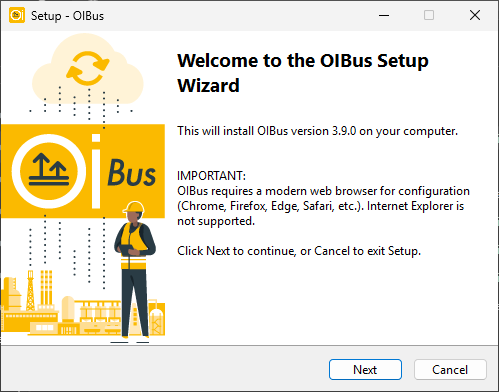
Launch the downloaded installer. You will see the welcome screen:
- Accept the License
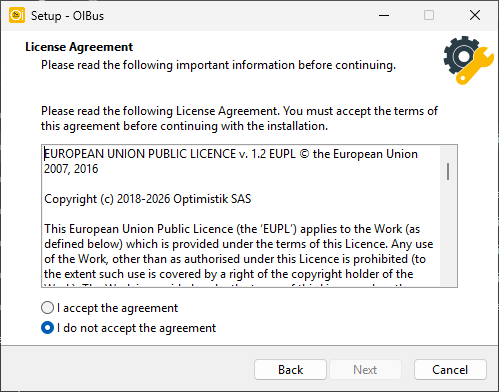
Read and accept the EU-PL license to proceed.
- Choose the service name and set Data Directory
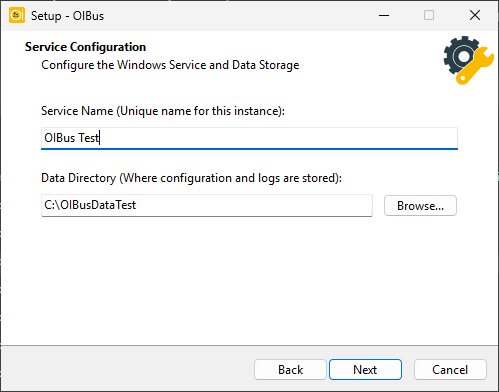
The Service Name identifies this OIBus installation as a Windows service. Keep the default
(OIBus) for a single installation, or give it a unique name (letters, digits, spaces, dots,
hyphens and underscores only) to run several OIBus instances side by side on the same machine.
The Data Directory is where its configuration, cache, and logs are stored:
For data safety, consider placing the data folder on a separate disk (e.g., D:\OIBusData). This helps prevent
disk space issues on the system drive and improves reliability.
Every OIBus instance needs its own installation folder and its own data directory. If either one is already used by another instance, the installer stops with an error and asks you to choose a different value here (or on the installation path page below).
- Set initial variables
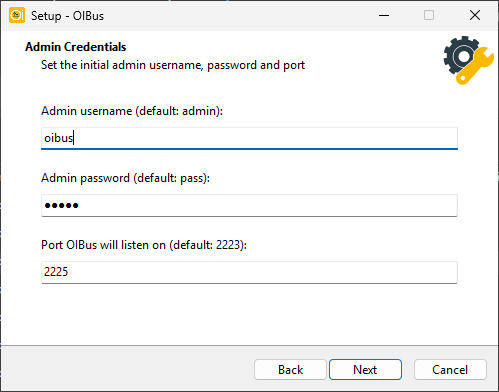
Set the initial admin username, password, and the port OIBus will listen on. Each instance has its own independent credentials, so the port is usually the value you need to change here when installing a second instance alongside an existing one (they can't share the same port):
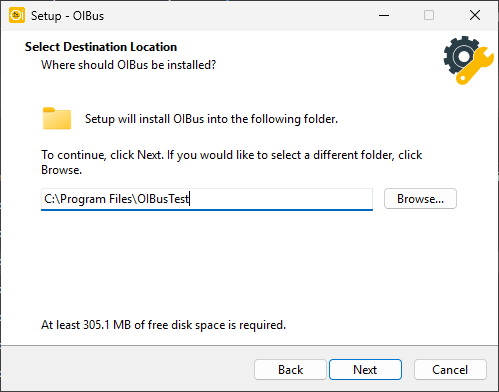
- Choose Installation Path
Select the directory where OIBus binaries will be installed. This is pre-filled with a suggestion
based on the service name from step 3 (OIBus for the default name, OIBus - <name> otherwise),
but you can still change it — it just needs to be a folder no other instance already uses:
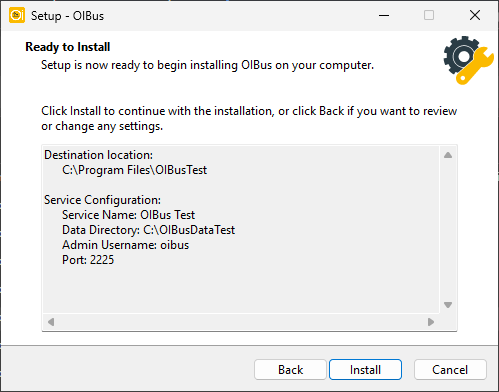
- Confirm and Install
Review your settings and confirm to begin the installation:
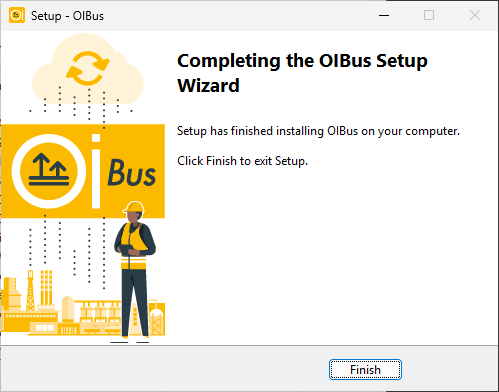
- Complete Installation
Once the installation is complete, you'll see a confirmation screen.
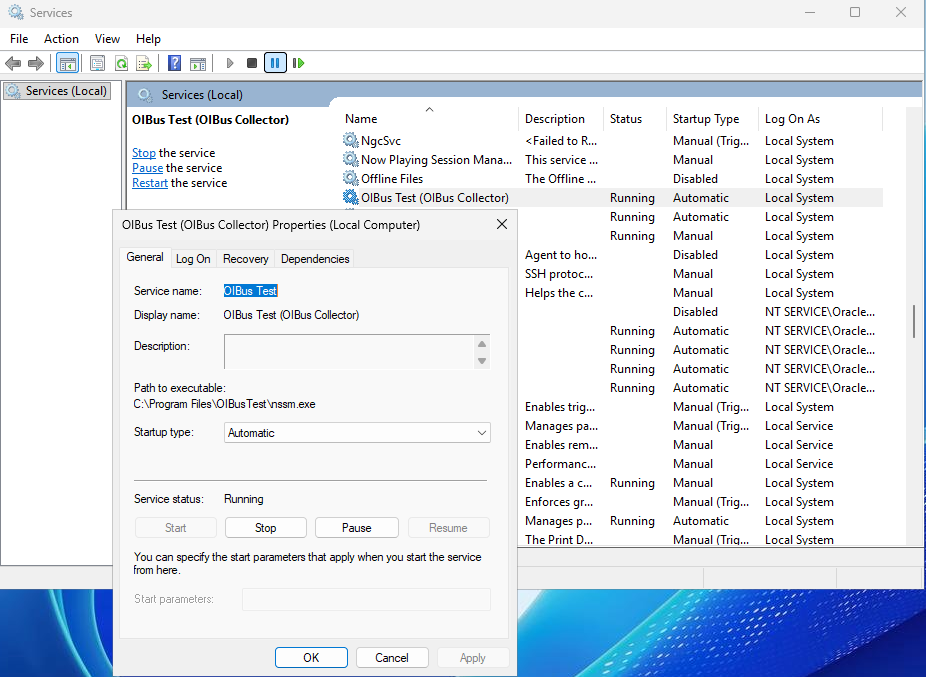
You can verify that OIBus is running properly as a Windows service.
The binary folder looks like this:
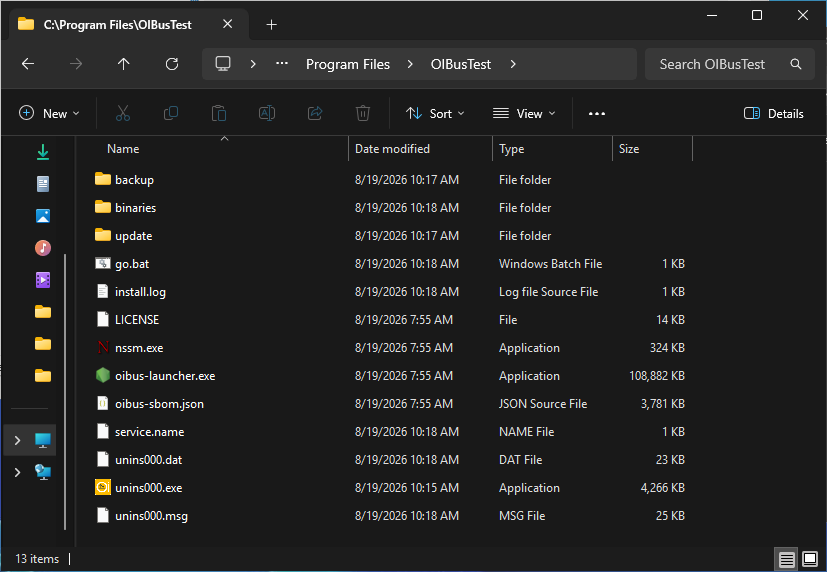
And the data folder looks like this:
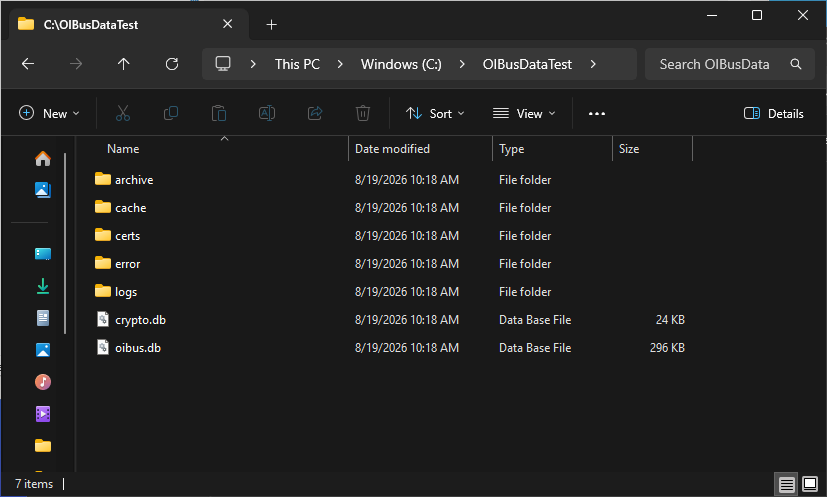
Proceed to the first access guide to configure OIBus.
Update OIBus
- Use the OIBus Windows Installer to update.
- Use the same Service Name as the existing installation you want to upgrade — a different name installs a new, additional instance instead of updating the existing one.
- Specify the current executable and configuration paths.
- Choose to keep or replace your existing configuration.
- The OIBus service will briefly stop during the update.
- On first startup after the update, the
oibus.dbconfiguration database will be automatically upgraded.
Uninstall OIBus
- Navigate to the OIBus binary folder.
- Run
unin000.exeas an administrator and confirm removal:

- You will be asked whether to remove all data (cache, error, archive, logs, certs, and the configuration/credentials databases) for this instance. Answering anything other than Yes leaves the data folder untouched:

Choosing to remove all data permanently deletes your configuration, credentials, and logs.
If several OIBus instances were installed into the same binaries folder, uninstalling removes the files all of them depend on. In that case, a warning listing every affected instance appears before anything is touched, and each one is stopped and offered for data removal in turn.
Download
Installation Steps
- Extract the Zip Archive
Unzip the downloaded file into the directory where you want to install OIBus (e.g., C:\Program Files\OIBus).
- Run the Installation Script Open an administrator terminal in the extracted folder and run:
install.bat -c "[your-data-folder-path]"
| Flag | Description | Default |
|---|---|---|
-c | Path to the OIBus data folder (cache, logs, configuration) | prompted if omitted |
-n | Windows service name — use a unique name to run multiple OIBus instances on the same machine | OIBus |
-u | Admin username written to oibus.init.json on first install | omitted (OIBus default applies) |
-p | Admin password written to oibus.init.json on first install | omitted (OIBus default applies) |
-port | Port OIBus listens on, written to oibus.init.json on first install | omitted (OIBus default applies) |
-u, -p, and -port are only used when oibus.db does not yet exist (i.e. on the very first install).
They are written to an oibus.init.json file in the data folder and applied by OIBus on first startup.
Omitted flags are not written to the file — OIBus will use its built-in defaults for those values.
On subsequent installs or updates the file is not recreated, so these flags have no effect.
- If you omit the
-cargument, the script will prompt you for the data path. - For data safety, consider placing the data folder on a separate disk (e.g.,
D:\OIBusData). This helps prevent disk space issues on the system drive and improves reliability.
Every OIBus instance needs its own installation folder and its own data directory. install.bat
checks this before installing anything and exits with an error if either one already belongs to a
different instance.
Example:
install.bat -c "D:\OIBusData" -u "admin" -p "password" -port 2223
> Administrator permissions required. Detecting permission...
> Stopping OIBus service...
> Installing OIBus as Windows service...
> The "OIBus" service has been successfully installed!
> Configuration of the "AppDirectory" parameter value for the "OIBus" service.
> nssm set OIBus AppNoConsole 1
> Starting OIBus service...
> OIBus: START: Operation successful.
> Creating go.bat
> echo Stopping OIBus service... You can restart it from the Windows Service Manager
> nssm.exe stop OIBus
> "C:\Users\Administrator\Downloads\oibus-win_x64\oibus-launcher.exe" --config "D:\OIBusData"
Proceed to the first access guide to configure OIBus.
Update OIBus
- Extract the new files from the zip archive.
- Open the Windows Service Manager and stop the OIBus service.
- Replace the old files in the OIBus executable directory with the new ones.
- Restart the OIBus service.
- On first startup, the
oibus.dbconfiguration database will be automatically upgraded.
If you re-run install.bat instead to update, use the same -n value as the existing
instance — a different name installs a new, additional instance rather than updating it.
Uninstall OIBus
Run the following command in an administrator terminal:
uninstall.bat -n "OIBus"
> Administrator permissions required. Detecting permission...
> Stopping OIBus service...
> Do you wish to remove all data for service OIBus (cache, logs...)? (y/N)
> Removing OIBus service...
You will be asked whether to remove all data (cache, error, archive, logs, certs, and the
configuration/credentials databases). Answering anything other than Y/y leaves the data
folder untouched.
Choosing to remove all data permanently deletes your configuration, credentials, and logs.
Download
Or download and extract directly from the terminal — pick the archive for your architecture:
# x64
curl -LO https://github.com/OptimistikSAS/OIBus/releases/download/v3.9.4/oibus-linux_x64-v3.9.4.zip
unzip oibus-linux_x64-v3.9.4.zip -d OIBus/

# ARM64

curl -LO https://github.com/OptimistikSAS/OIBus/releases/download/v3.9.4/oibus-linux_arm64-v3.9.4.zip
unzip oibus-linux_arm64-v3.9.4.zip -d OIBus/
oibus-launcher— launcher that manages the OIBus process and handles upgradesbinaries/oibus— main OIBus executableoibus-setup.sh— interactive installation scriptoibus-uninstall.sh— uninstallation script (updated during installation)
The setup script has been tested on Ubuntu and Debian. For other distributions you may need to adapt the systemd service configuration.
Install as a System Service
-
Extract the downloaded archive and enter the directory.
-
Run the setup script as root:
sudo ./oibus-setup.sh [options]
| Flag | Description | Default |
|---|---|---|
-b | Directory where OIBus binaries are installed | prompted if omitted |
-c | Path to the OIBus data folder (cache, logs, configuration) | prompted if omitted |
-k | Keep existing configuration without prompting (Y or N) | prompted if omitted |
-n | Instance name — sets engineName in oibus.init.json and the systemd unit name | oibus |
-u | Admin username written to oibus.init.json on first install | omitted (OIBus default applies) |
-p | Admin password written to oibus.init.json on first install | omitted (OIBus default applies) |
-port | Port OIBus listens on, written to oibus.init.json on first install | omitted (OIBus default applies) |
-u, -p, and -port are only used when oibus.db does not yet exist (i.e. on the very first install).
They are written to an oibus.init.json file in the data folder and applied by OIBus on first startup.
Omitted flags are not written to the file — OIBus will use its built-in defaults for those values.
On subsequent installs or updates the file is not recreated, so these flags have no effect.
Running Multiple Instances
Passing a custom -n lets you run more than one OIBus instance on the same machine, each as its own
systemd service:
- The default instance (
-nomitted, or-n oibus) keeps the classicoibusservice name. - Any other name creates its own
oibus-<name>service (letters, digits, dots, hyphens and underscores only — no spaces).
Every instance must have its own binaries directory (-b) and its own data directory (-c): the
script checks a machine-wide instance registry (/etc/oibus/instances) before installing anything,
and refuses to proceed if either folder already belongs to a different instance. Reinstalling or
upgrading the same instance into its own existing folders is unaffected.
sudo ./oibus-setup.sh -n test -b ./OIBusTest -c ./OIBusTestData
sudo systemctl status oibus-test
sudo journalctl -u oibus-test -f
-
The script will prompt for any required value not supplied as a flag (
-band-c). On first install it also asks whether to keep an existing configuration if one is found. -
On success you will see:
Service file successfully created. Enabling OIBus service startup on system boot...
Created symlink /etc/systemd/system/default.target.wants/oibus.service → /etc/systemd/system/oibus.service.
Starting OIBus service...
Installation procedure completed!
- Open
http://localhost:2223in a browser and follow the first access guide.
Service Management
Replace oibus with oibus-<name> below if you installed with a custom -n.
sudo systemctl status oibus    # check service status
sudo systemctl start oibus     # start the service
sudo systemctl stop oibus      # stop the service
sudo systemctl restart oibus   # restart the service
sudo journalctl -u oibus -f    # stream live logs
Update OIBus
- Download the latest version and extract it.
- Stop the service:
sudo systemctl stop oibus(oroibus-<name>for a named instance) - Replace the binary files in the installation directory with the new ones.
- Start the service:
sudo systemctl start oibus(oroibus-<name>for a named instance)
The oibus.db configuration database is upgraded automatically on first startup after an update.
Uninstall OIBus
Navigate to the OIBus binary directory and run:
sudo ./oibus-uninstall.sh
You will be asked whether to remove all data:
Do you wish to remove all OIBus data (cache, logs...)? All data, credentials and logs about your
current OIBus will be permanently erased. (y/N)
Answering Y/y removes the cache, error, archive, logs, and certs folders along with the
oibus.db and crypto.db files. This also removes the instance from the machine-wide registry, so
its folders can be reused by a new instance afterward.
Choosing to remove all data permanently deletes your configuration, credentials, and logs. The data folder is not removed automatically if you answer anything other than Y/y.
Run in Standalone Mode
To run OIBus without installing it as a service (useful for testing):
./oibus-launcher --config ./OIBusData
Make sure the OIBusData directory exists before running this command. OIBus will not be started
automatically on system boot in this mode.
Download
macOS support is intended for development and testing. For production deployments, use Linux or Windows where OIBus can be installed as a system service.
Run OIBus
-
Extract the downloaded archive to a location of your choice.
-
Open Terminal and navigate to the extracted folder.
-
Launch OIBus:
./oibus-launcher --config ~/oibus-data
Replace ~/oibus-data with the path where you want to store OIBus configuration and cache files.
- Administrator permissions are required to run the binary.
- The binary must be executed from its own folder.
Allow App Execution
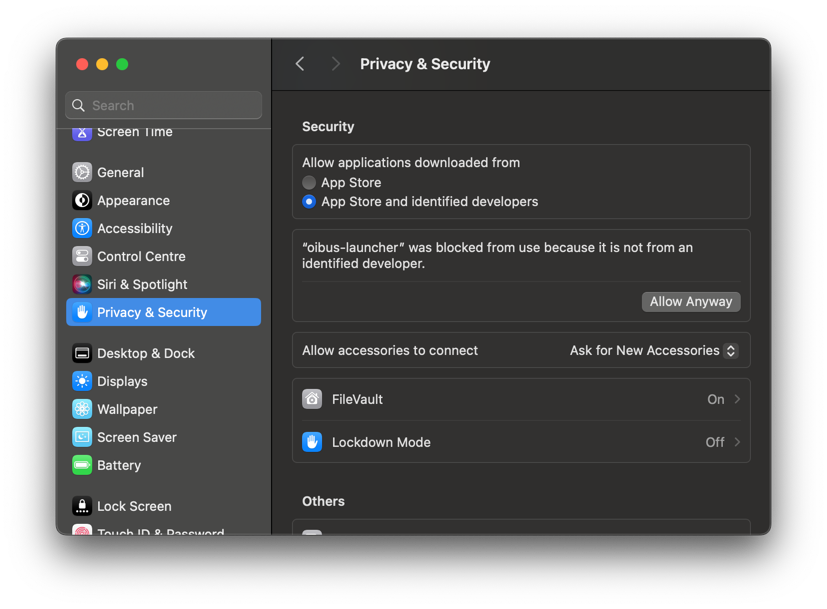
macOS Gatekeeper will block unsigned binaries on first launch. You need to allow both oibus-launcher
and oibus (which the launcher starts as a child process):
- Run
./oibus-launcher— macOS will display a security warning and block execution. - Go to System Settings → Privacy & Security.
- In the Security section, click Allow Anyway next to the blocked binary.
- Repeat for the second binary when it is blocked.
Access OIBus
Once OIBus is running, open http://localhost:2223 in a browser and follow the
first access guide.
Pull the Image
docker pull ghcr.io/optimistiksas/oibus:v3.9.4
Run the Container
docker run -d \
--name oibus-container \
-p 2223:2223 \
-v ./OIBusData:/app/OIBus/OIBusData \
--restart unless-stopped \
ghcr.io/optimistiksas/oibus:v3.9.4
The -v mount is required for production use. Without it, all configuration, cache, and logs are lost
when the container stops or is replaced.
When running in Docker, do not change the OIBus HTTP port (2223) from the web interface. The container only exposes port 2223 — changing it internally will make the interface unreachable.
Open http://localhost:2223 in a browser and follow the first access guide.
Initial Configuration (First Run)
Set these environment variables on the container to configure the admin account, port, and engine name
before OIBus starts for the first time — the equivalent of the -u/-p/-port/-n flags used by the
Windows and Linux installers.
| Variable | Description | Default |
|---|---|---|
ENGINE_NAME | Name given to the OIBus engine | omitted (OIBus default applies) |
ADMIN_USERNAME | Admin username | omitted (OIBus default applies) |
ADMIN_PASSWORD | Admin password | omitted (OIBus default applies) |
ADMIN_USERNAME_FILE | Path (inside the container) to a file holding the admin username — for Docker Secrets; takes priority over ADMIN_USERNAME when set | omitted |
ADMIN_PASSWORD_FILE | Path (inside the container) to a file holding the admin password — for Docker Secrets; takes priority over ADMIN_PASSWORD when set | omitted |
DEFAULT_PORT | Port OIBus listens on inside the container | omitted (OIBus default applies) |
docker run -d \
--name oibus-container \
-p 2223:2223 \
-v ./OIBusData:/app/OIBus/OIBusData \
-e ENGINE_NAME=MyOIBus \
-e ADMIN_USERNAME=admin \
-e ADMIN_PASSWORD=changeme \
--restart unless-stopped \
ghcr.io/optimistiksas/oibus:v3.9.4
These variables are only applied when the data folder does not yet contain an oibus.db — i.e. on the
very first start. On any later start (including after an update) they have no effect; OIBus already has
a configuration database and uses the values stored in it.
DEFAULT_PORT only changes the port OIBus listens on inside the container. You still need to publish
the same port on the host, e.g. -p 8080:8080 -e DEFAULT_PORT=8080, and it must be set on that very first
run for the same reason as above.
Docker Compose
services:
oibus:
  image: ghcr.io/optimistiksas/oibus:v3.9.4
  container_name: oibus-container
  ports:
    - '2223:2223'
  volumes:
    - ./OIBusData:/app/OIBus/OIBusData
  restart: unless-stopped
  environment:
    - TZ=UTC
  # Uncomment to apply resource limits:
  # deploy:
  #   resources:
  #     limits:
  #       cpus: '2'
  #       memory: 2G
Port Configuration
| Port | Purpose | How to expose |
|---|---|---|
2223 | OIBus web interface | -p 2223:2223 (included by default above) |
| (custom) | OIBus proxy server | Add -p <HOST_PORT>:<CONTAINER_PORT> as needed |
To expose the proxy server port (e.g. 9000) alongside the web interface:
docker run -d \
--name oibus-container \
-p 2223:2223 \
-p 9000:9000 \
-v ./OIBusData:/app/OIBus/OIBusData \
--restart unless-stopped \
ghcr.io/optimistiksas/oibus:v3.9.4
Update OIBus
Pull the new image, then recreate the container. The data volume is preserved:
docker pull ghcr.io/optimistiksas/oibus:v3.9.4
docker stop oibus-container
docker rm oibus-container
docker run -d \
--name oibus-container \
-p 2223:2223 \
-v ./OIBusData:/app/OIBus/OIBusData \
--restart unless-stopped \
ghcr.io/optimistiksas/oibus:v3.9.4
With Docker Compose:
docker compose pull
docker compose up -d
The oibus.db configuration database is upgraded automatically on first startup after an update.